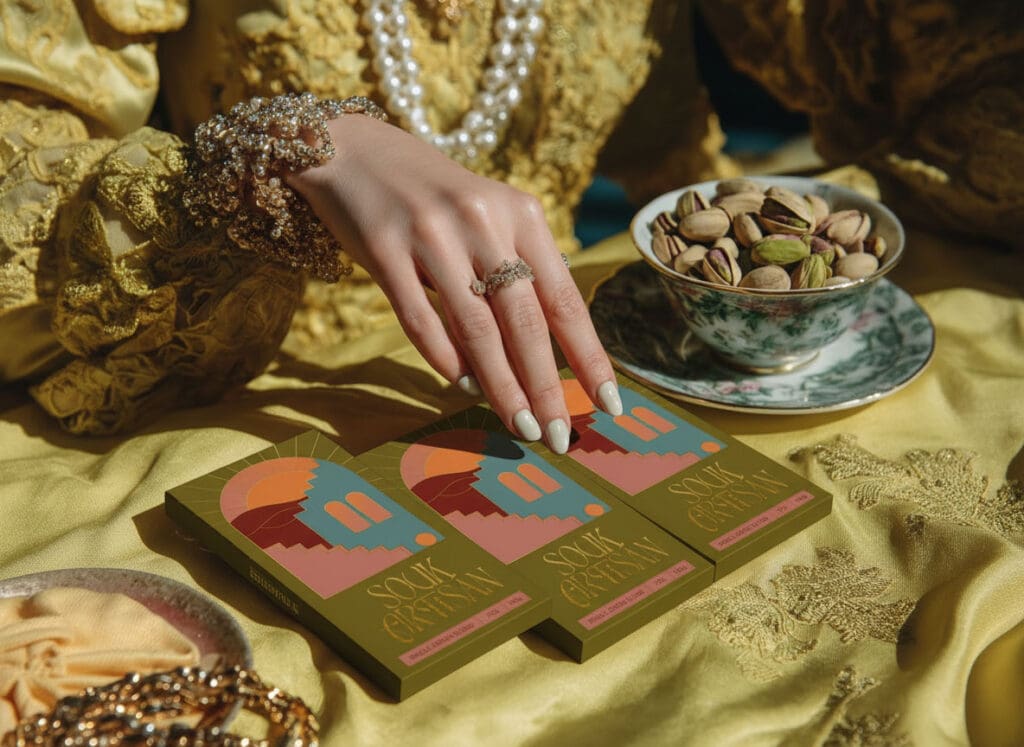
The best AI image generation and editing tools for Packaging Designers in 2026
4/20/26
This guide evaluates four AI image generation and editing tools — Adobe Firefly, Canva, PhotoRoom, and Kittl — specifically for packaging designer workflows in 2026.
Tools are assessed across five criteria weighted for packaging relevance: ease of integration into existing design workflows, AI generation quality for product surfaces, background removal precision on complex packaging (foil, glass, transparent pouches), packaging-specific features (mockup wrapping, Product Swap, batch consistency), and commercial IP safety.
Broader text-to-image platforms (Midjourney, DALL-E 3, Stable Diffusion, Imagen 4) were reviewed but excluded because they lack workflow integration into packaging production software and do not produce print-safe, CMYK-ready output as standalone tools.
Adobe Photoshop and Illustrator are treated as the production baseline and are not evaluated here as AI generation tools.
Quick answer
No single tool replaces the full packaging workflow in 2026 — but in practice, Adobe Firefly sits at the center of most professional packaging workflows, with other tools supporting specific stages like product photography, presentation, and typography.
The four tools reviewed occupy distinct roles in the packaging production stack:
Adobe Firefly (with Gemini 2.5 via Firefly Boards): Best for production-grade AI editing — Generative Fill, Generative Expand, IP-safe concept generation — within an existing Adobe Creative Cloud workflow. Strongest overall for professional studios.
PhotoRoom (Pro): Best for product photography production — background removal on transparent and complex packaging, AI background staging, and batch consistency across large SKU ranges.
Kittl (Pro): Best for typography-led, artisan, craft, and heritage packaging design.
Canva (Pro): Best for rapid client presentation mockups and brand-kit management across teams.
Most professional packaging workflows in 2026 use two or three of these tools in combination, rather than selecting one.
Packaging design imagery operates under constraints that generic tools were not designed for:
physical surface rendering
print fidelity
IP safety
consistency across large SKU ranges
In most professional packaging workflows, Adobe tools form the production backbone — where final assets are refined, composited, and prepared for output. Tools like PhotoRoom, Canva, and Kittl are layered around that system to accelerate specific stages rather than replace it.
Packaging design lives and dies on the quality of its imagery. Whether you’re building a mockup for a pitch deck, retouching a hero product shot for an e-commerce launch, or generating images for social media, the tools you use directly shape how connected the product feels. AI image generation and editing tools are now a standard component of professional packaging design workflows, used across concepting, photography production, and client presentation.
For packaging designers and agencies, product photographers, and brand creatives, tool selection is determined by three factors: output consistency, image quality on physical packaging surfaces, and integration with existing production workflows.
This guide identifies the best tools for packaging design image editing, defines who each tool is for, when to use it, and why it matters — for designers at every stage of their career.
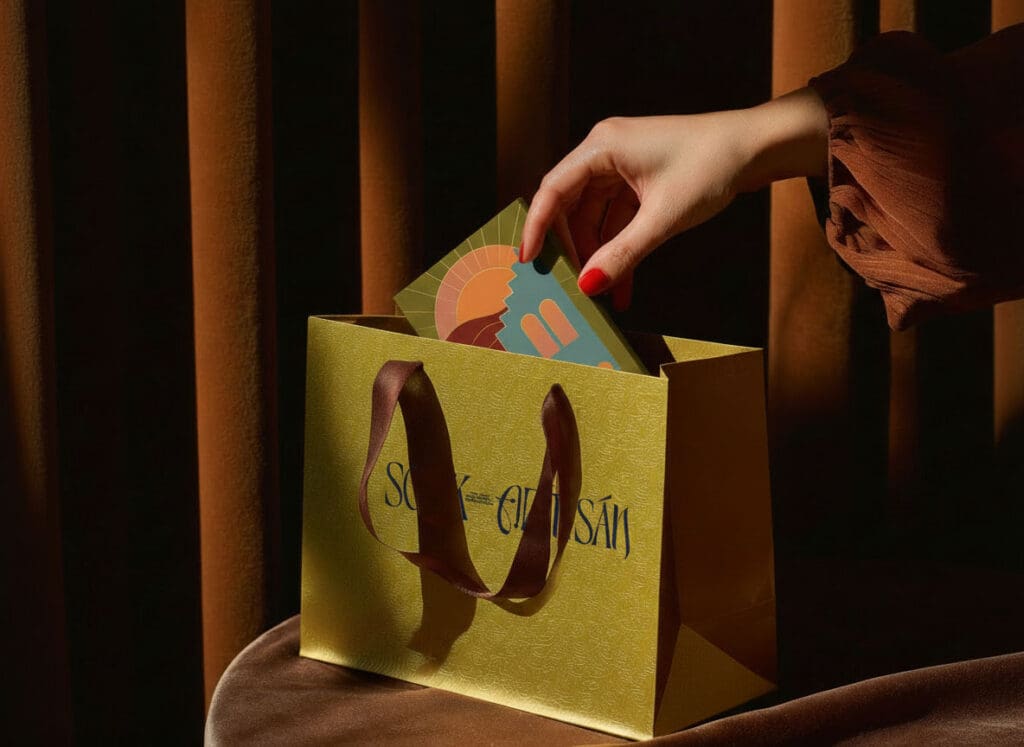
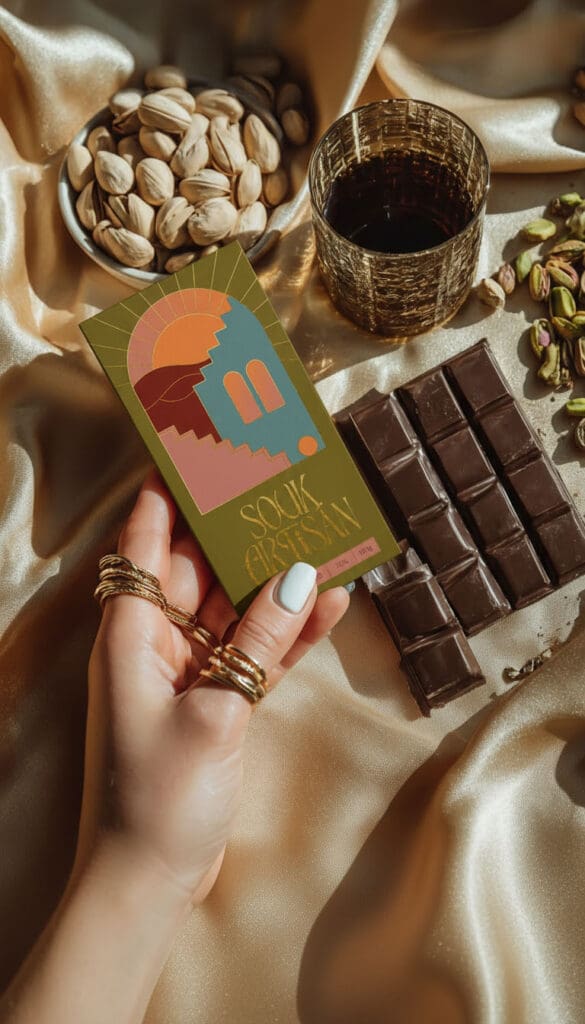
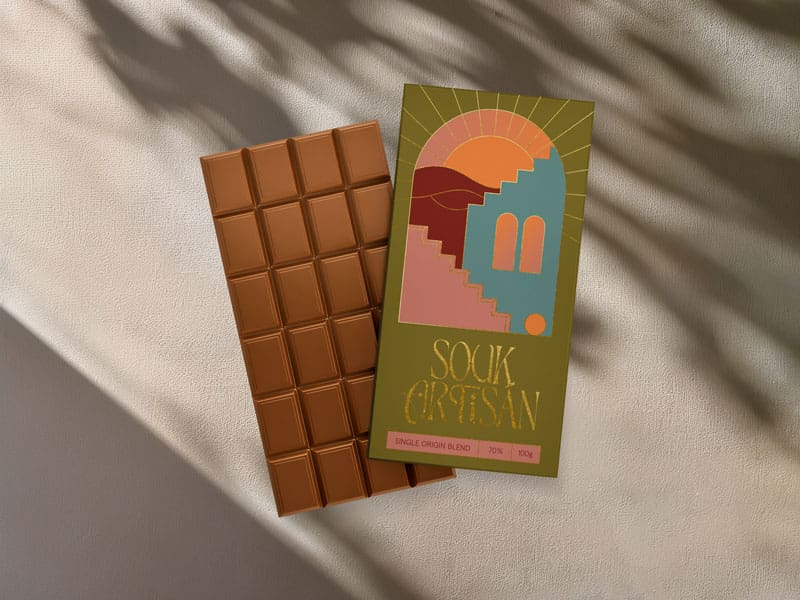
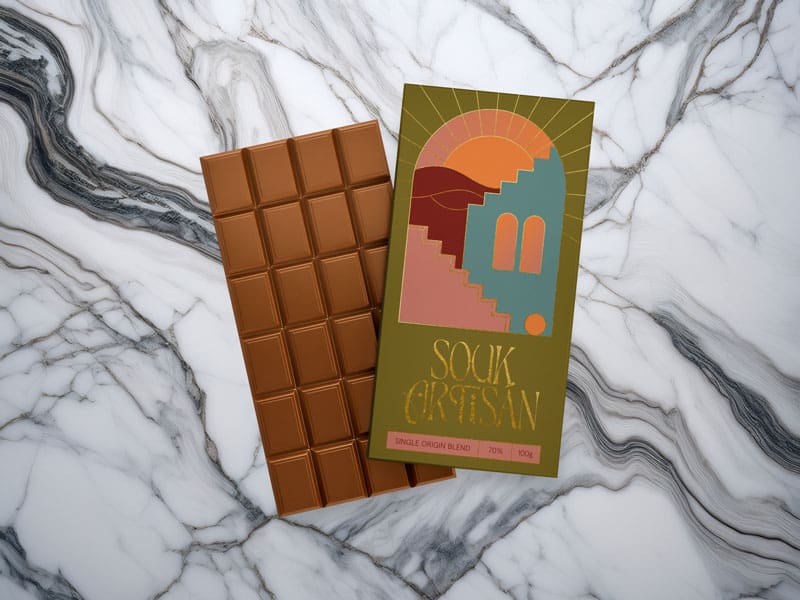
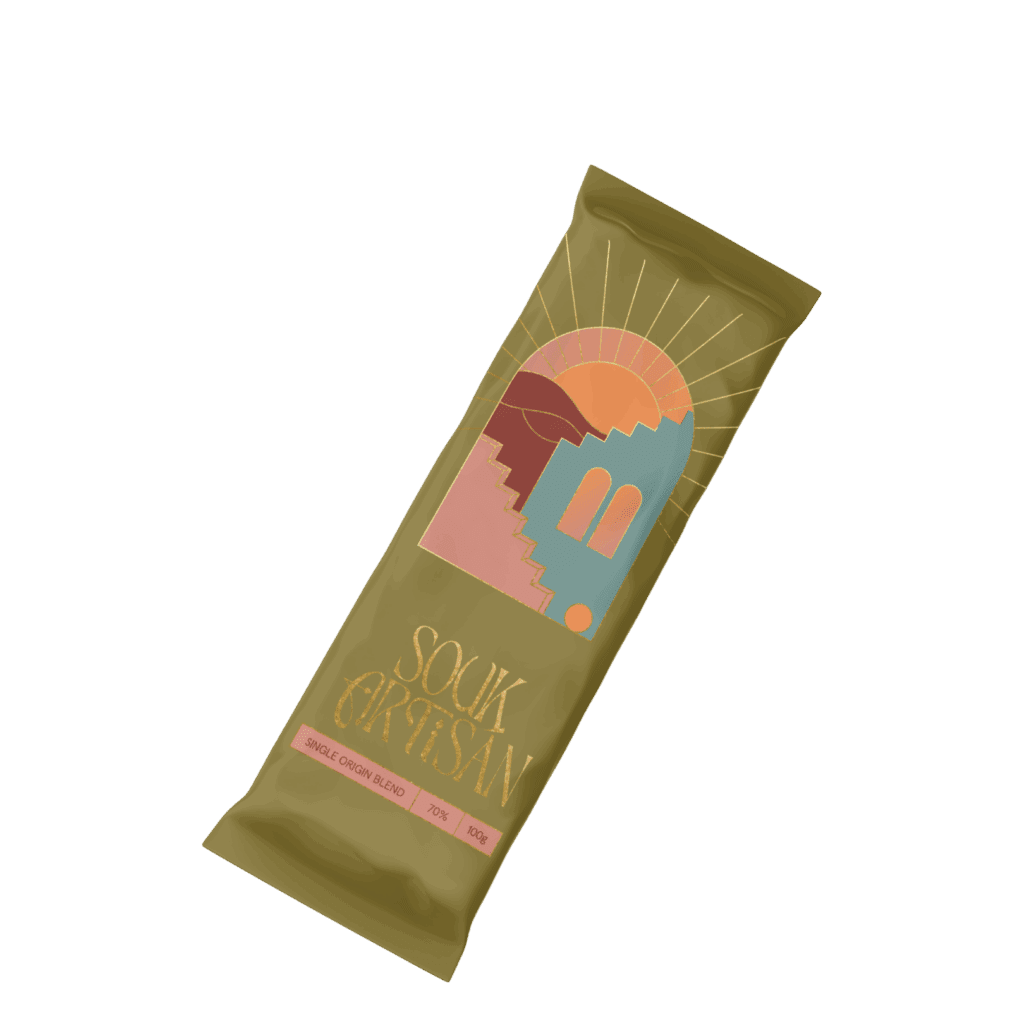
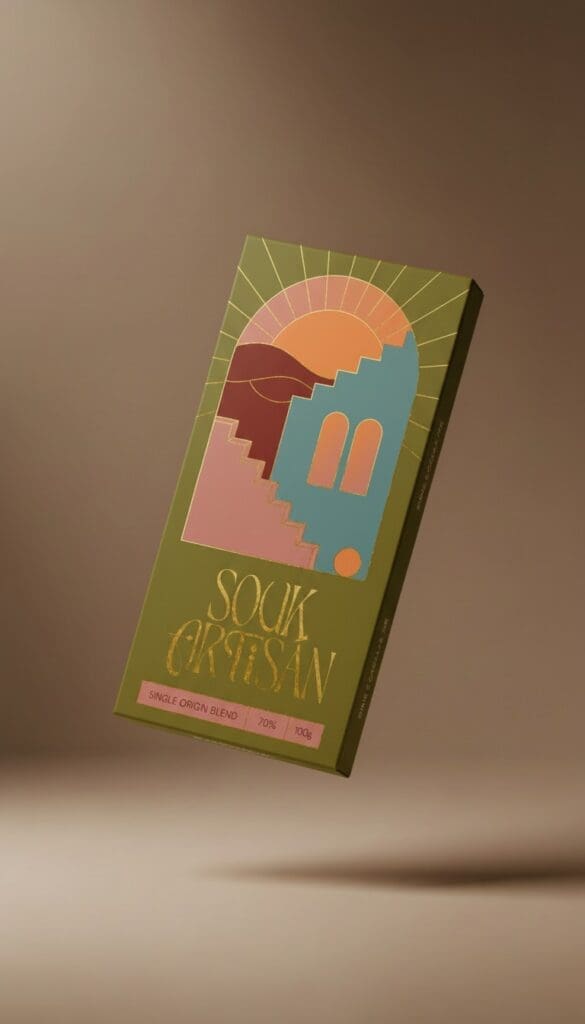
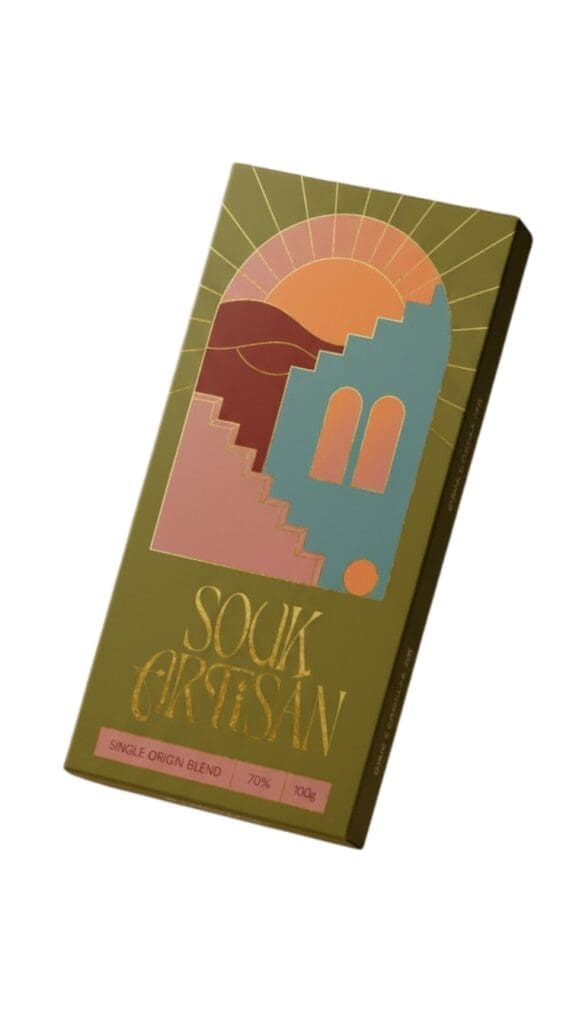
The four tools reviewed are Canva, Adobe Firefly (including partner model Gemini 2.5), PhotoRoom, and Kittl. All examples are drawn from a live conceptual project for a Dubai chocolate brand, Souk Artisan, to demonstrate real-workflow outcomes rather than isolated demos.
Quick decision: where each tool fits
Adobe Firefly → production-level editing and concepting inside Creative Cloud
Canva → presentation mockups and brand asset management
Kittl → typography-led label and illustration workflows
How to Choose: A Framework for Packaging Design
Before diving into individual tools, it helps to define what ‘good’ actually means for packaging design — a discipline with distinct output requirements that differ from general graphic design or social media production. The criteria below are the lens through which every tool in this guide is assessed.
Skill level and learning curve
Packaging designers range from production artists who need to process high volumes of assets, to brand designers and creative directors who need to make creative judgements and creative direction at every step of the project. This guide considers ease of use for users transitioning from traditional workflows, as well as depth for experienced designers who need that extra granular control. Both matter differently depending on your role and level of experience.
AI capability vs creative control
AI tools can be transformative for packaging design, for the simple things like removing backgrounds, generating textures, populating unique and never-seen-before mockups and scenes, and upscaling backdrops. But AI output is always (at least, today) based on adventure and play.
AI image generation does not guarantee a predictable output for every prompt — this variability is a fundamental characteristic of current generative models. For heavy brand-critical outcomes, the question is never ‘can AI do this?’ but ‘can I trust and control the output enough to use it professionally and be content with the unknown process?’ The tools reviewed here are assessed across all dimensions.
Packaging-specific features
Generic photo editing tools were not designed with packaging specifically. The features that matter most for this workflow include mockup abilities, and mostly: the ability to wrap or conform flat artwork to three-dimensional surfaces.
A handy reference table for freelancers and agencies in Packaging Design:
Your primary need
Start here
Fast mockups for client presentations
Adobe Firefly, PhotoRoom
AI image generation for concept work
Adobe Firefly and Partner Model Gemini 2.5
Product photography: background & staging
PhotoRoom
Artisan / craft / heritage label typography
Kittl
Brand kit and team asset management
Canva Pro
Tool 1: Adobe Firefly and Partner Model Gemini 2.5
Best for: Packaging studios and professionals already working within Adobe Creative Cloud who need production-level AI editing (Generative Fill, Generative Expand) with commercially safe concept generation.
Category: AI image generation and editing, integrated into Adobe Creative Cloud Website: firefly.adobe.com (also accessible within Photoshop, Illustrator, and Express) Platforms: Web app; deeply integrated into Photoshop (desktop), Illustrator (desktop), Adobe Express (web/mobile)
What it is
Adobe Firefly is Adobe’s family of generative AI models, trained exclusively on licensed content from Adobe Stock. This is the point that sets it apart from most competitors: because Firefly is designed to be commercially safe, meaning the images it generates do not carry the intellectual property risk. For brands and commercial packaging design, this can be a plus point and helpful for both clients and service providers.
Firefly powers capabilities across the Adobe ecosystem including text-to-image generation, Generative Fill, Generative Expand, Vector Recolour, and text effects — accessible via the standalone web app, Photoshop, Illustrator, and Adobe Express.
Generative Fill: in-context image replacement
For packaging designers, the Generative Fill tool in Photoshop is the Firefly feature with the most game-changing capabilities.
You can select any area of a product photograph and type a description of what should replace it — ‘white marble surface’, ‘kraft paper texture’, ‘deep blue gradient background’ — and Photoshop will generate multiple photorealistic options right before your eyes. Because Photoshop is contextually aware, it will take note of the existing image and match the lighting and shadows in a really intelligent way.
Another useful application in a packaging workflow is background generation and extension. If you have a product shot with a background that does not match the brand environment, or a crop that is too tight for a layout, Generative Fill can expand and replace the background without re-shooting. Transformative, literally.
💡 Packaging tip:Use Generative Fill to extend a product shot that was cropped too tightly. Select the empty area beyond the original image border, type a description matching the existing background, and Firefly generates a seamless extension. This represents a significant time saving compared to manual cloning or background extension in Photoshop.
^ Generative fill with Firefly produces custom backgrounds
Text-to-image for concepts using Gemini 2.5
Adobe Firefly Boards (available via Firefly Pro) is really well-suited to packaging design as a concepting tool. When presenting visual directions to a client, designers can generate a set of AI reference images in Firefly Boards, giving the presentation a visual grounding that written descriptions alone cannot achieve.
These outputs are not finished packaging designs and are not intended to be — they function as rapid creative direction references, used to align stakeholder expectations before the full production process begins.
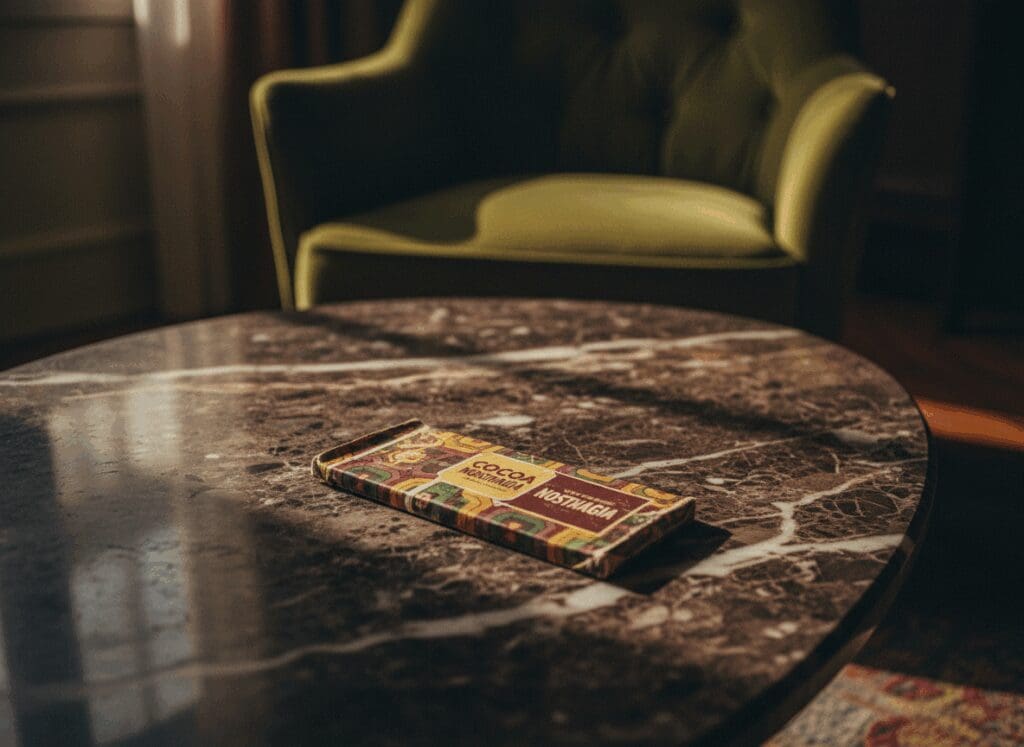
In the example below, Firefly Boards was used with the Gemini 2.5 partner model to generate a scene using the following prompt:
“A chocolate bar packet resting on a dark veined marble coffee table, in a moody, dimly lit interior. Lush olive green velvet armchair in the background, soft warm shadows, cinematic editorial photography style. Rich earthy tones — deep burgundy, forest green, brown and gold. Retro packaging design with aged textures. Shot on film, shallow depth of field, warm amber light, 1970s interior aesthetic. 3/4 angle, shot slightly from above.”
^ Text to image using Firefly Boards and Gemini 2.5
Firefly’s Product Swap feature allows designers to upload an existing packaging design and generate complementary imagery — placing the product into new scenes for campaign backgrounds or additional product line extensions, without re-shooting.
^ Product swap within Firefly using Gemini 2.5
Adobe Firefly for packaging: verdict
Ease of use
⭐⭐⭐⭐
Firefly Boards has a low learning curve; Generative Fill in Photoshop integrates easily into existing workflows
AI capability
⭐⭐⭐⭐⭐
Highest-rated AI generation in this review. Commercial IP safety via Adobe Stock training is the key differentiator for brand and packaging work
Output quality
⭐⭐⭐⭐
Always realistic and professional
Packaging specifics
⭐⭐⭐⭐
Product Swap, Generative Fill backgrounds, and Generative Expand are highly useful packaging workflow tools
Value for money
⭐⭐⭐⭐
Brilliant value if you’re already in Creative Cloud; the credit system is the only thing that can bite you on heavy projects
Overall
⭐⭐⭐⭐⭐
Highest-rated tool in this review for professional packaging studios already in the Adobe ecosystem
Recommended audience: Mid-weight to senior packaging designers and production studios already on Adobe Creative Cloud. Not recommended as a standalone tool for designers without an existing CC workflow — the highest-value features (Generative Fill, Generative Expand, Firefly Boards) require Photoshop or Illustrator access.
Tool 2: Canva
Best for: Designers and brand teams who need fast, polished presentation mockups, consistent brand asset management across multiple team members, and accessible social content without needing deep Photoshop experience.
Category: Browser-based design platform with AI features Website: canva.com Platforms: Web + Desktop + Mobile
What it is
Canva started as a beginner-friendly graphic design tool and has grown into one of the most widely-used creative platforms in the world.
Canva has historically been positioned as a tool for non-designers, which led many professional designers to dismiss it. Its capabilities in 2026, however, make it relevant to professional packaging workflows in specific, well-defined use cases.
In 2026 it is no longer a simple tool for making instagram graphics — it contains a photo editor, an AI image generator (Magic Media), an AI background remover, a brand kit system, a presentation builder, a video editor, and a template library numbering in the millions.
For non-designers and marketing teams, it’s a contender. For packaging designers it requires pairing with other tools to reach professional output quality — but within its lane, it does the job.
The packaging design use case
Canva’s mockup library is abundant and growing. The platform now includes a range of product mockup templates — bags, bottles, boxes, cups, labels — that allow you to drag a flat design directly onto a product form and generate a presentation-quality image.
For client mood boards, concept presentations, and social-media campaign visuals, this workflow is genuinely fast.
The brand kit feature (Pro only) locks brand colours, fonts, and logos across all assets. For packaging designers managing multiple brand accounts, this prevents inconsistency across team members and ensures all collaborators work from the same approved assets.
💡 Packaging tip:For first-round client presentations, Canva’s mockup workflow offers a fast path from flat artwork to polished deck. Exporting a flat label design from Illustrator as PNG, importing it into a Canva product mockup template, and embedding it in a presentation deck can be completed in under 30 minutes.
^ Graphics applied to Canva mock up template
AI features: Magic Media and Magic Edit
Canva’s AI image generation tool, Magic Media, uses a text-to-image model to generate background imagery, pattern fills, and concept art.
For packaging designers, the most useful application is generating lifestyle background imagery for brand concepts — for example, creating a contextual kitchen scene to place a food packaging mockup into, without needing a big photograph shoot. The quality is good for presentation work but not for final production imagery. It’s more of an internal reference point.
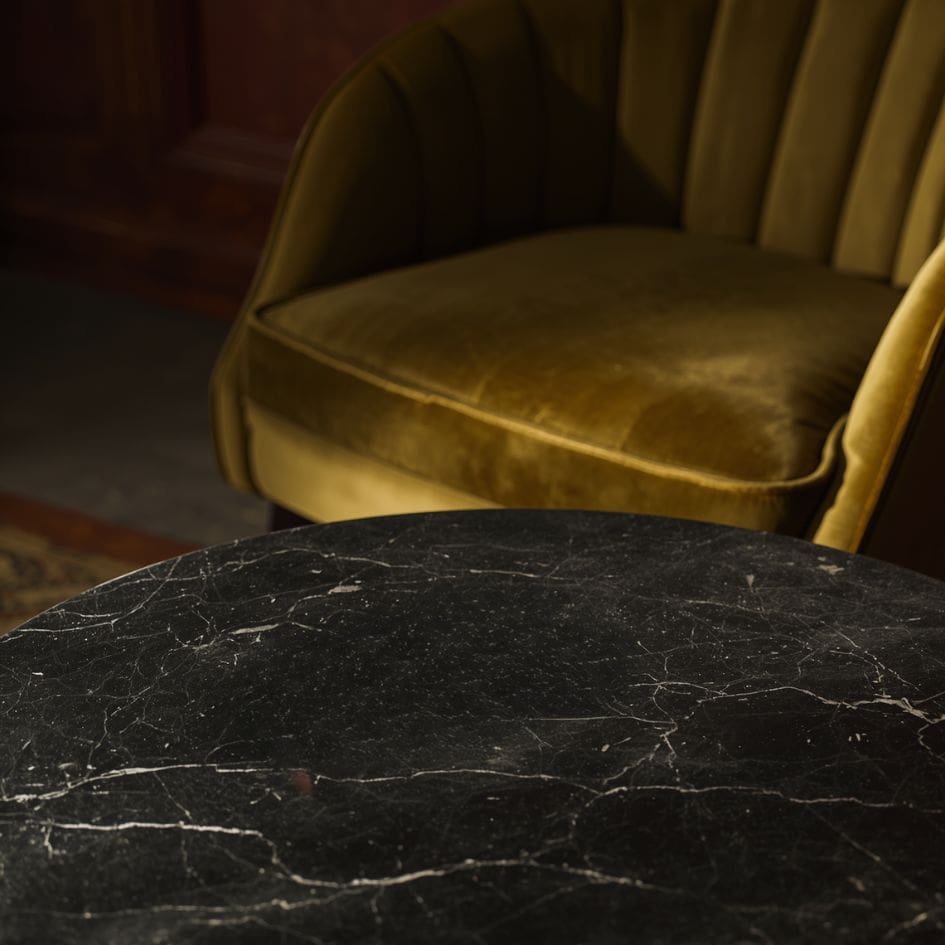
Using a similar prompt for the same brand theme:
“A dark veined marble coffee table, in a moody, dimly lit interior. Lush olive green velvet armchair in the background, soft warm shadows, cinematic editorial photography style. Rich earthy tones — deep burgundy, forest green, brown and gold. Retro packaging design with aged textures. Shot on film, shallow depth of field, warm amber light, 1970s interior aesthetic. 3/4 angle, shot slightly from above.”
^ Scenes made with Canva Magic Media
Meanwhile Magic Edit allows you to select any area of an image and replace it with AI-generated content. This is useful if you want to make quick changes to the scene or the mockup; like changing the colour of a product surface, replacing a background, or testing a different texture. Again, the output is best treated as a concepting tool for a quick visual.
^ Edits made with Canva Magic Media
⚠️ Watch out:Canva’s AI generation tools are built for speed and accessibility, not absolute control or precision. If you’re a control designers who prioritise fine typographic control may find the Pro plan constraints limiting and should consider Kittl as an alternative.
Canva for packaging: verdict
Ease of use
⭐⭐⭐⭐⭐
The most accessible tool in this review — minimal learning curve, no design software experience required
AI capability
⭐⭐⭐
Magic Media is suitable for internal concepting and mood boards; but output quality falls below client-presentation standards for most professionals
Output quality
⭐⭐⭐
Strong on-screen presentation quality; output resolution and precision are below professional standard
Packaging specifics
⭐⭐⭐
The mockup library has grown a lot and it’s useful; just don’t go looking for dielines or print specs
Value for money
⭐⭐⭐⭐
Excellent value for what it does; best value when used for presentations and brand kit management rather than design production
Overall
⭐⭐⭐
A useful layer in the packaging workflow — not a replacement for professional design tools, but a genuine time-saver for social content
Recommended audience: Junior-to-mid designers, in-house brand teams, and multi-person agencies that need consistent asset management across multiple users. Also suitable for packaging designers who need rapid client presentation mockups without Photoshop. Not recommended for precision design work, print-production artwork, or CMYK-critical deliverables.
Tool 3 – PhotoRoom
Best for: Packaging designers and product photographers who need precise background removal on complex or transparent packaging, lifestyle product staging without a studio, and consistency across large SKU ranges.
Category: AI product photography editor — background removal, staging, and batch editing Website: photoroom.com Platforms: Web, iOS, Android; API available for enterprise
What it is
PhotoRoom is purpose-built for product photography production — background removal, staging, and batch processing — and delivers the highest precision of the four tools reviewed for these specific tasks. It is not a graphic design platform or a brand kit builder. It is a pure product photography AI, and within that lane it is exceptional.
It’s built entirely around the e-commerce and commercial photography workflow: upload a product image, remove the background with best-in-class precision, drop it into a staged lifestyle scene, apply consistent lighting and shadows, and export for any platform. For packaging designers working on e-commerce product ranges, it’s the highest-efficiency tool in this review.
Background removal: properly good
Background removal is where PhotoRoom made its name, and the quality is there. For packaging design specifically, ‘complex’ means exactly the surface types most common in packaging design: bottles with transparency, foil pouches with metallic reflections and Tetrapaks with sharp edges.
The AI also handles transparency correctly, retaining the refraction and layering in glass and clear packaging elements rather than treating them as solid shapes to cut out. We’re talking a level of photographic understanding that matters enormously when your client is a premium wellness brand or a fancy Dubai Chocolate brand like this:
^ Photoroom background removal
Product Staging: Shopify’s new best friend
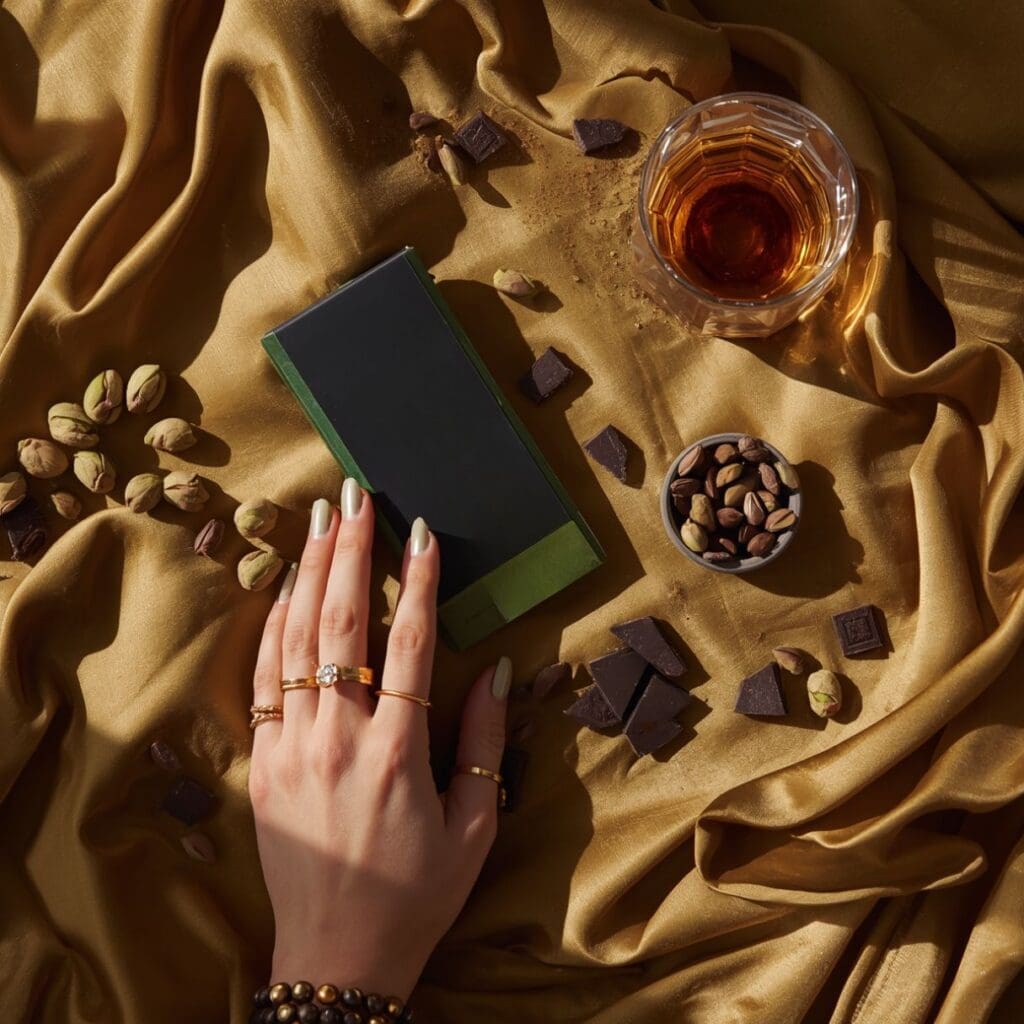
Product Staging is PhotoRoom’s most significant feature for packaging designers in 2026. Just upload a product shot…even the most basic one taken against a plain background and PhotoRoom will generate a photorealistic lifestyle scene around it.
The AI reads the product type and generates contextually appropriate environments: a food product might be staged in a kitchen, a luxury cosmetic on a marble surface, a Dubai chocolate bar among desert-warm textures and spice market materials.
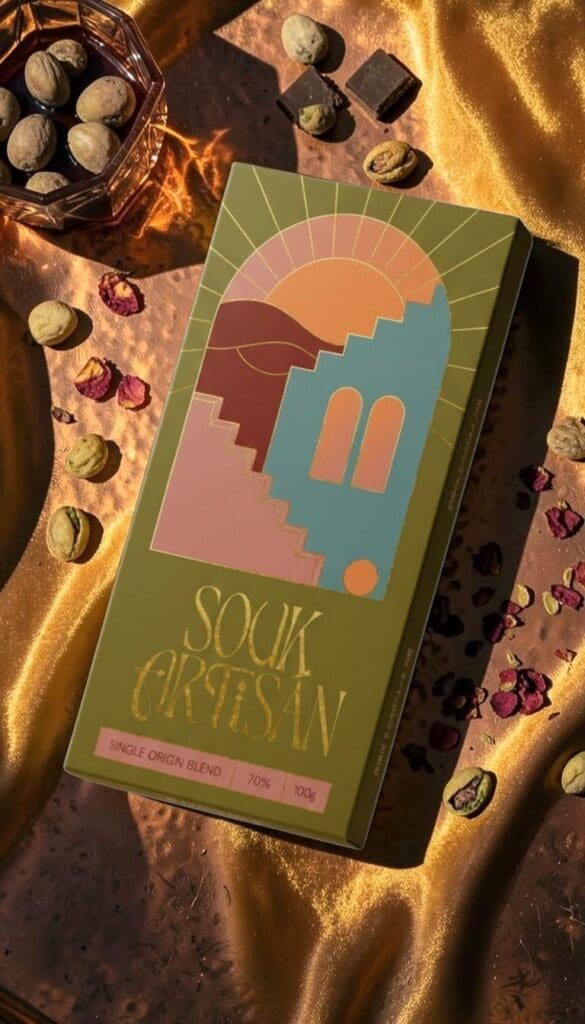
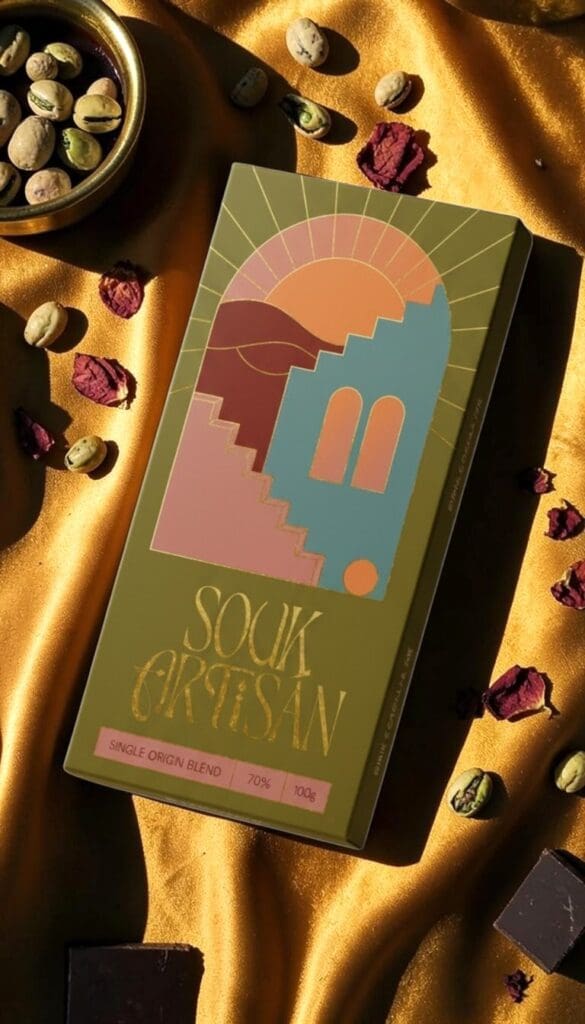
In testing on the Souk Artisan project, Product Staging placed the chocolate packaging into a series of contextually appropriate Middle Eastern scenes — warm golden light, aged copper surfaces, scattered rose petals — without any physical props, studio setup, or photographer. The outputs were presentation-ready and viable for use in final campaign social assets.
^ Photoroom custom backgrounds and Product Staging
PhotoRoom for packaging design: verdict
Ease of use
⭐⭐⭐⭐⭐
The most intuitive product photography tool — anyone can do it
AI capability
⭐⭐⭐⭐⭐
Best-in-class background removal; Product Staging is a workflow changer
Output quality
⭐⭐⭐⭐
Excellent for digital
Packaging specifics
⭐⭐⭐⭐
Handles complex packaging surfaces better than any competitor; no design tools
Value for money
⭐⭐⭐⭐⭐
Paid plans are very fairly priced given what you get at scale
Overall
⭐⭐⭐⭐⭐
The highest-performing photography tool in this review
PhotoRoom is exceptional within its category — but it operates as a specialised photography tool rather than a full design or production environment. In practice, it works best alongside Adobe tools rather than as a replacement for them.
Tool 4: Kittl
Best for: Designers specialising in artisan, craft, heritage, premium, or independent brand label work who require high-quality typography tools, vector output, and illustration-style AI generation within a browser-based environment.
Kittl occupies a specific niche: more design-sophisticated than Canva for typography and illustration, more accessible than Illustrator, and better suited to label-first design than any other tool in this review.
It sits in a very specific sweet spot: more design-sophisticated than Canva (especially for typography and illustration work), but way more accessible than Adobe Illustrator. It’s built a loyal following amongst brand designers and freelancers. For packaging specifically; and in testing on the Souk Artisan project, delivered results that exceeded initial expectations for a browser-based label design tool.
AI features: capability assessment
Since earlier versions, Kittl has made meaningful progress on its AI feature set.
They retired their older AI tools and replaced them with something called Image Remix. You can remove or replace elements within an image, fill space with contextually accurate content, and generate product backgrounds by transforming a basic product photo into a scene with depth and style — all directly on the canvas. You can even merge or combine up to six images at once without leaving the app. For a browser-based label design tool, this represents a notably high level of editorial control over AI output.
A notable feature is Kittl’s model selection capability: designers can choose their AI model based on the task at hand. ChatGPT Image 1, Google Imagen 4, and FLUX for photorealistic images. Ideogram 3 if you need AI-generated type or layout work. FLUX Kontext Pro and Nano Banana for style experiments and edits. This model flexibility within Kittl provides significantly more creative range than a single-model tool.
The platform’s established features — background removal, image upscaling, colour editing, and the AI vectorise tool — which converts a raster image into clean vector outlines — are all still there and all still excellent. When a client provides a hand-drawn sketch, vectorising it in Kittl and integrating it directly into a label design is a fast, two-minute workflow that would otherwise require Illustrator.
It is important to note that this remains generation and light editing, not Photoshop-level compositing. The platform is meaningfully more capable than earlier versions suggested, and the Image Remix feature is particularly relevant for label work that incorporates photographic elements.
^ Images prompted with Kittl
Kittl for packaging design: verdict
Ease of use
⭐⭐⭐⭐
More capable than Canva for typography and illustration; steeper learning curve
AI capability
⭐⭐⭐
Excellent for illustrated/decorative outputs; don’t expect photorealism
Output quality
⭐⭐⭐⭐
Vector-quality graphics; same RGB/no-CMYK limitation as everyone else
Packaging specifics
⭐⭐⭐⭐⭐
The best browser tool for label, badge, and typography-led packaging work
Value for money
⭐⭐⭐⭐
Pro plan delivers strong value for designers whose output regularly includes labels or typographic complexity
Overall
⭐⭐⭐⭐
Narrower applicable audience than the other three tools, but the strongest browser-based label design tool available
Side-by-Side: All Four Tools Compared
All four tools were applied to the Souk Artisan chocolate brief. This comparison covers the four tools most relevant to packaging design production workflows in 2026. None replaces the others — each occupies a distinct position in the workflow. The tables below map features and recommended use cases side by side:
Feature Comparison
Feature
Firefly
Canva
PhotoRoom
Kittl
Platform
Web + within PS/AI/Express
Web + Desktop + Mobile
Web + iOS + Android
Web only
AI generation
Yes — best-in-class
Yes (Magic Media)
Yes — e-comm trained
Yes — mockup-oriented
Background removal
Yes (via Photoshop)
Yes (AI)
Yes — best precision
Yes (AI)
Product staging
Via Presets
Limited mockup templates
Yes — dedicated feature
No
Batch editing
Via Photoshop actions
Limited
Yes — up to 500 images
No
Recommended Use Cases
Task
Best Tool
Why
Product background removal (complex)
PhotoRoom
Best precision on foil, glass, and fine detail
Lifestyle staging without a photoshoot
PhotoRoom
Product Staging AI reads product type and generates context
So, which are the best AI image generation and editing tools for Packaging Designers in 2026?
The following summary is based on hands-on testing of all four tools against a live client project — the Souk Artisan chocolate brand brief.
None of these tools are interchangeable — but they are also not equal in role.
Adobe Firefly remains the central workflow layer for packaging design, where concept work, editing, and production converge.
Adobe Firefly
Firefly remains the strongest option for packaging workflows that originate in Photoshop. Generative Fill is the real deal — not a novelty, not a vibe, an actual time-saver that handles the kind of retouching and background work that used to eat hours. Add Gemini 2.5 via Firefly Boards for early concept generation, and you’ve got IP-safe imagery from brief to mockup without leaving Adobe. For studios already on a Creative Cloud subscription, Firefly is the highest-value addition to an existing workflow at no incremental cost.
Canva
Canva has established a legitimate place in professional packaging workflows, specifically for presentation mockups, brand-kit management, and multi-stakeholder asset consistency. It is not suited to precision design or print-production work, and should not be applied beyond its defined use case.
PhotoRoom
PhotoRoom was the highest-performing tool relative to initial expectations. The background removal on transparent and complex packaging — glass, foil, clear pouches — handles things that would normally require a careful manual mask in Photoshop. Product Staging without a studio, batch consistency across a full SKU range, a colour-matching eyedropper that actually works the way you want it to. PhotoRoom’s capabilities for complex packaging — transparent surfaces, foil edges, fine label detail — exceeded expectations for a tool positioned primarily as an e-commerce editor.
Kittl
Kittl is the most specific of the four in terms of who it’s really for. If you’re doing a lot of artisan, craft, heritage, or premium label work — the kind of design where the typography is the design — it is the strongest browser-based label design tool currently available. The OpenType support alone makes the Pro plan worth it if labels are a regular part of your output. In practice, most professional packaging workflows will reach for two or three of these, not one.
Workflow scenario
Reach for first
Then reach for
Initial concept generation
Adobe Firefly (Boards + Gemini 2.5)
Canva (presentation deck)
Product photography retouching
Adobe Firefly (Generative Fill)
PhotoRoom (complex cutouts)
E-commerce imagery at scale
PhotoRoom (Product Staging + Batch)
Adobe Firefly (Generative Expand)
Artisan / heritage label design
Kittl
Adobe Firefly (textures and backgrounds)
Quick client mockup
Canva
PhotoRoom (clean product cutout)
Multi-SKU range consistency
PhotoRoom (Batch)
Canva (brand kit)
FAQs
Which of these four tools is best for a packaging designer just starting out?
Start with Canva for presentations and PhotoRoom for product photography — both have genuinely low learning curves and free tiers that allow you to test before committing. If you’re already studying design and have access to Adobe Creative Cloud through your institution, add Firefly from day one.
Do I need Adobe Creative Cloud to use Firefly?
No — Firefly has a standalone web app at firefly.adobe.com with a free tier (25 generative credits per month). However, the highest-value features for packaging work (Generative Fill in Photoshop, Generative Expand, Firefly Boards with Gemini 2.5) require a Creative Cloud subscription. If you’re already paying for CC, Firefly is essentially included.
Can PhotoRoom handle transparent packaging — glass jars, clear pouches, that kind of thing?
Yes, and it’s great. Most tools treat transparent elements as solid shapes to cut out, which looks terrible on premium packaging. PhotoRoom correctly retains refraction and layering in glass and clear packaging. It handles the stuff that usually requires a manual Photoshop mask. Colour me impressed.
Is PhotoRoom only for e-commerce, or does it work for packaging agencies?
It’s built with e-commerce in mind but the core tools — background removal, product staging, batch consistency — are things packaging agencies do all the time. At Our Kind, we use it for both e-commerce client work and for generating imagery on branding projects. The interface is accessible enough that junior team members or even clients can use it for simple updates, which is a bonus.
Which tool is best for generating AI backgrounds for product shots?
It depends on what you’re after — and they actually do quite different things. PhotoRoom’s Product Staging is the faster, more automatic option: it reads the product type and generates a contextually appropriate environment without much input from you. Great when you need something that looks right quickly. But it is prescriptive — the AI makes most of the decisions and you’re working within what it gives you. Firefly offers greater creative control because output is driven by a designer-written prompt, allowing more brand-specific, atmospherically precise results. In testing, Firefly produced imagery that more accurately matched the specific brief (a warm, dusty Middle Eastern market scene for Souk Artisan) than PhotoRoom’s contextually generated staging, which tends toward broadly appropriate rather than brand-specific environments. Recommendation: use PhotoRoom for speed and consistency across large SKU ranges; use Firefly for brand-specific creative direction.
Can these four tools replace Adobe Creative Cloud for packaging design?
No. For concept work, presentations, product photography, label design, and social content, these four tools collectively cover a lot. But for print-production artwork, CMYK colour management, advanced masking, RAW photography processing, and structural dieline work — you still need the core Creative Cloud suite. These four tools accelerate and improve the front and middle stages of the packaging workflow. The production anchor is still Adobe, and probably will be for a while yet.